This is your initial Demo ProjectUse this template to explore the features of the Playground. After you have finished the intro, you can have a look under this section for a recap of the features.
 Have an idea in mind?Just start creating. Double-click on this component to edit its proprieties.
What can you do in Playground
Drag & drop elements
Create components
Upload your own assets
Invite collaborators
Change style in the Inspector
Export code in various frameworks
Publish on our own hosting
Responsiveness on multiple devices
1Project
∞Deploys
10Different frameworks to export your code
Deploy & Code export
Once you have a design that you like, you can quickly copy the real-time generated code or export it into a zip file. You can also continue your work in CodeSandbox or take your project to GitHub. If you want, you can also publish the project using teleportHQ hosting, or add your own settings.Responsive projects
Responsiveness is essential when building a website. To change the resolution you're working at, use the sliders on each side of the canvas, or select the desired resolution from the breakpoints bar.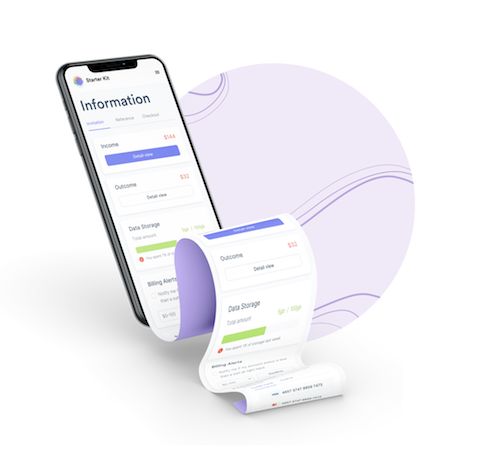
Assets manager
You can upload your own assets and use them in the project. Moreover, if you're looking for a specific image or an icon you can look it up in the libraries that we provide. Stock imagesAs we mentioned previously, you can use stock images to customize your website. Open the Unsplash tab in the Assets Manager, and replace this image by clicking on another one that you like. In the future, if you want to add an image, just click on it - and if you want to add it as a background image, use ALT + click.
 Props & Dynamic contentYou can create dynamic components, by using the props feature. At this moment, you can have dynamic text and the images. Click on this component to see how it works, and change the text or the image.
 Collaboration & CommentsOh, and did we mention how cool the collaboration feature is? Click on the + on the top right bar, write the email of the person you want to share the project with, and you can immediately start collaborating. On the bottom left of the screen you have the "Comments" button, where you can communicate ideas by leaving messages on specific pages or components.
Explore the reusable components.SEE COMPONENTS